 It’s bittersweet, but welcome to the last installment of the Basics of Oracle SRM blog series! Social gurus, you are about to master the final portion of this robust social management platform: Content & Apps. I’m excited to help you complete this journey. Let’s do this!
When it comes to creating branded content, Content & Apps is the most important part of SRM. The main purpose of this section is to allow users to produce unique templates for use on Facebook tabs or websites. Keeping your social brand content consistent is effortless within this tool! Time to break it down a little bit.
When you first enter the Content & Apps area, you begin in the View tab. A View is content that can be published on a specified tab on your Facebook page, similar to Timeline, About, and other tabs you see on the top of your page. Views in SRM can only be published to Facebook. When you create a new View, you must give it a title, a slug (needed for back-end software, the name can be anything), timezone, and a brand template. Once you have filled these things out, here is what your new View will look like.
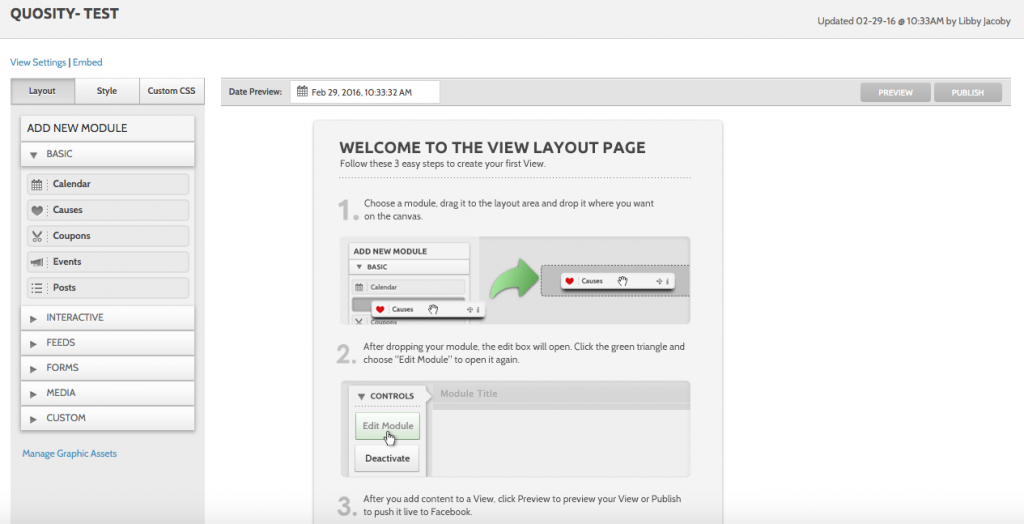
Oracle SRM gives you some optional guidance for creating your new View. You can add modules such as Calendar, Causes, Coupons, and others to each View. When you are finished creating your new View, you can preview before posting or publish straight to Facebook. The possibilities are endless for specified brand content in this section! In the View Manager section, it is also easy to copy views, edit them, or delete them altogether.
The next tab is Connections, where you will find Facebook Pages and My Apps. Facebook Pages shows you all the different pages you are an Admin of, related to your bundle. It will also show the page name, the app it is connected to, the View attached to it, if it is a non-fan View, and the Country and Language, if applicable. Here, it is easy to edit a page or attach a new View. The Connections tab is helpful for having your app information all in one place, and fully utilizing Views.
My Apps is an accumulation of the Facebook apps you have created and added to Content & Apps. The information listed here includes the App’s Tab Name, API key, API secret, Canvas Page URL and Description. Just like above, you can edit these apps or create new ones.
Now let’s take a look at Brand Templates, the golden child of Content & Apps. Brand Templates are “sets of content and CSS that you can apply to individual Views. You can create multiple templates to use for specific campaigns or for different properties under your brand.” (Source). In layman’s terms, Brand Templates allow a user to create visually-consistent content across Views. Here is what the editor looks like when you begin to create a Brand Template.

Creating consistent templates for your bundle is simple with the Brand Templates feature. Your templates will appear on every View, but you can make them optional. You cannot delete templates within the specific View, you can only delete within this tab. Here, you also have the option to edit the CSS of the template, but only do so if you are familiar.
Are you seeing a light at the end of the tunnel? Two more tabs left!
Contests, surprisingly, is where all the Contests you have created on your account are accumulated, with capabilities to edit and monitor submissions. Contests can be surveys, photo submissions, or anything that encourages follower interaction. Contests can be pulled into Views via the Contest Module. When creating a new Contest, you first must give it the basics: Name, Facebook Content Name and Description.
Once you have named your Contest, you can create and edit the Phases, shown below.
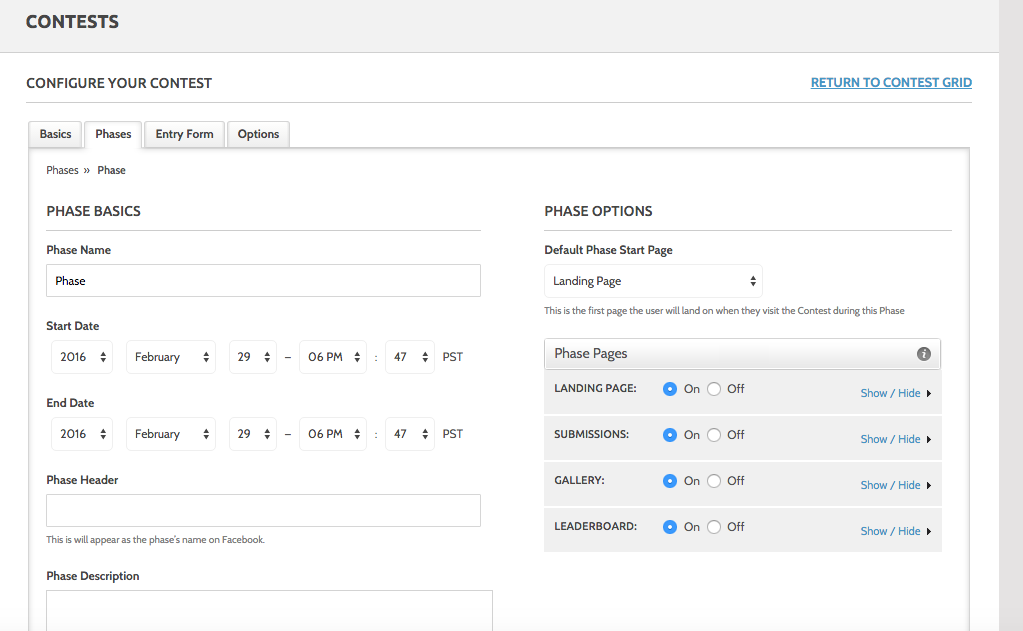
Phases are the specific steps to your Contest, such as Entry Time, Voting, Top Ten, and Winner. You can have as many phases as you’d like and specify their time period, landing page image, number of submissions, etc.
Under the Entry Form tab, you can create the form your fans will fill out to enter the Contest. You can customize this a number of ways, choosing what information you want from your contestants. This can be helpful for collecting contact or lead information.
Options helps you complete your Contest by giving you the chance to add Terms and Conditions, Contest Rules, Frequently Asked Questions, and/or Private Policy. You can choose multiple of these or none at all.
Of course, the Contest will all appear in the Contest Grid, allowing you to view what Contests exist and are in action. Using the gear menu, you can edit, delete, or view submissions for each Contest as well.
Finally, we’ve reached Admin, with similar capabilities to the other sections we have previously covered. Here, you can select which Layout Settings you prefer for your Content & Apps. This includes base CSS styling and View Layout width. You can also view your activity history in this tab, filtering by specific dates or ranges.
Do you hear that?! It’s the sound of champagne popping and confetti falling to the floor because you have completed your Basics of Oracle SRM journey! It has been my pleasure to lead you. (*Wipes proud tear from eye*)
Stay tuned for a full recap of this series!
Share This
About the Author: Relationship One