 Punxsutawney Phil’s six weeks are up, and our clocks have officially “sprung” forward. With spring now upon us, it’s time to break out your figurative Oracle Eloqua spray bottles and sponges and get ready to spruce up your instance.
Below, I’ve captured some fairly quick quality checks along with some recommendations on how to best go about cleaning (aka next steps).
1) Review your Contact Status
Navigation: Navigation Bar > “?” icon > Contact Status
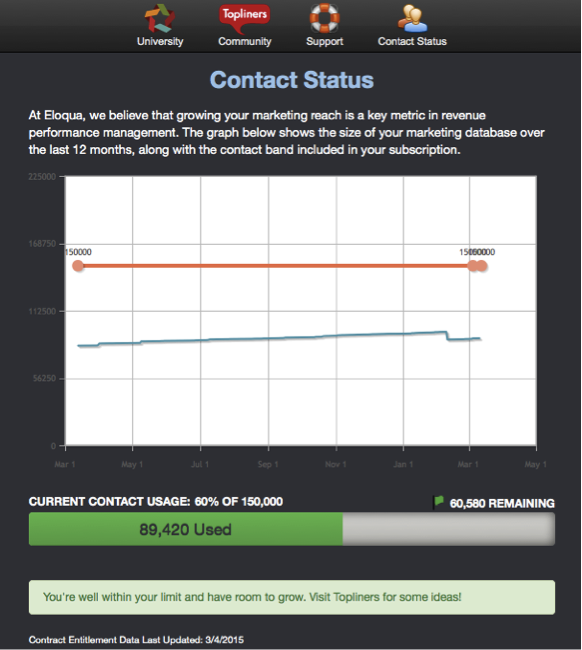
It’s simple. Grow your marketing reach, and you increase the opportunities to have your message seen or heard. This page provides you with a 12-month overview of growth, as well as a percentage-based usage calculation on the contact bandwidth readily available. How to leverage:
- If you’re well below your contact bandwidth subscription, consider ramping up your lead generation efforts.
- If you’re nearing exhaustion, then it’s time to either make room (delete records) or purchase a larger subscription.
Either way, quantity doesn’t always equate to quality, so with that, we move on to our next clean up item.
2) Run a Contact Audit
Navigation: Insights > Contacts > Database Health Dashboard


Regardless of where your bandwidth sits, it’s important to check the quality of your records. This dashboard provides an overview of your database health, including those deemed Active vs. Inactive (no inbound activity in a given time span) and Reachable vs. Unreachable (unsubscribed/hard bounce flag). This should serve as your go-to source in identifying those records you’d want to consider for removal.
How to leverage (Unreachable):
- Contacts deemed Unreachable are NOT being (or can’t be) communicated to, so unless there is a business case for keeping them, these are the obvious ones to consider removing.
- Contacts Unreachable via Hard Bounce could simply just need some TLC, so check for typos (bob@yaoo.com vs. bob@yahoo.com), and investigate alternate ways to append a correct address (3rd party) prior to removal.
How to leverage (Inactive):
- Contacts deemed Inactive require an internal discussion, as use case may vary based on one’s respective sales cycle. Regardless, there will come a time where one (contact/prospect) simply hasn’t shown any interest via lack of activity over a period of time where you’d want to count your losses and focus your attention (and dollars) on those showing interest. Prior to officially “breaking up,” introduce some last-ditched re-engagement campaign efforts to get them back on board prior to cutting ties.
Note, when integrated with a CRM, you’d want to keep those being deleted from coming back into Eloqua should they remain in your CRM. For that, we have a great Blog Post on how to go about this process (https://relationshipone.com/delete-delete-question/#.VQL1iBDF-_c).
I’d also recommend saving those deleted to a spreadsheet with their full data record values. This way, it serves as an easy reference should you need to review historical data and/or re-upload in the event of mistakenly deleting a contact.
3) Run a Contact Field Audit
Navigation (high-level; set 12-15 fields): Insights > Contacts > Database Health Dashboard
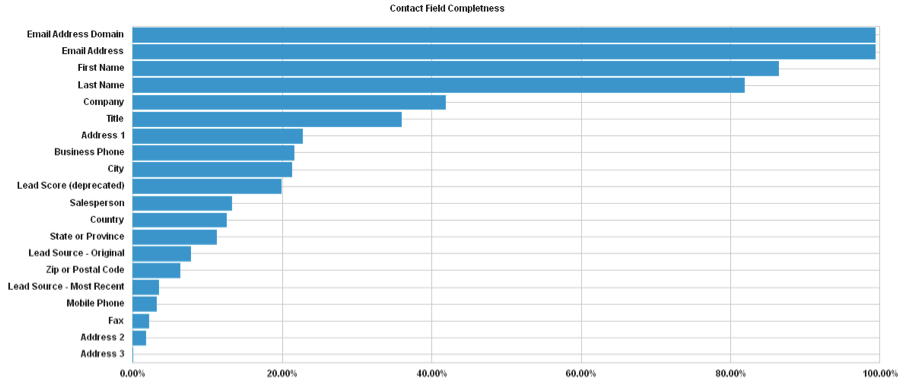
Navigation (detailed): Settings > Setup > Fields & Views > Select desired field > Field Population Details – View – or simply via Segments

The quality of your data is critical to properly assigning lead score, assignment and for filtering/segmentation. Simply reviewing these percentages/numbers, you’ll realize where to concentrate your efforts to clean up and/or further populate.
How to leverage:
- If the percentage of key business fields is under populated, consider campaign efforts to solicit population of these fields (e.g. Update your Profile campaign, etc.)
- Consider implementing a Progressive Profiling strategy to continuously beef up your contact records.
- If you find that the values being captured are no longer relevant or contain inconsistencies (e.g. US, USA, United States), then look into updating your field picklists, your forms and possibly introducing a data cleansing program with update rules.
4) Review your Field Mapping Spreadsheet
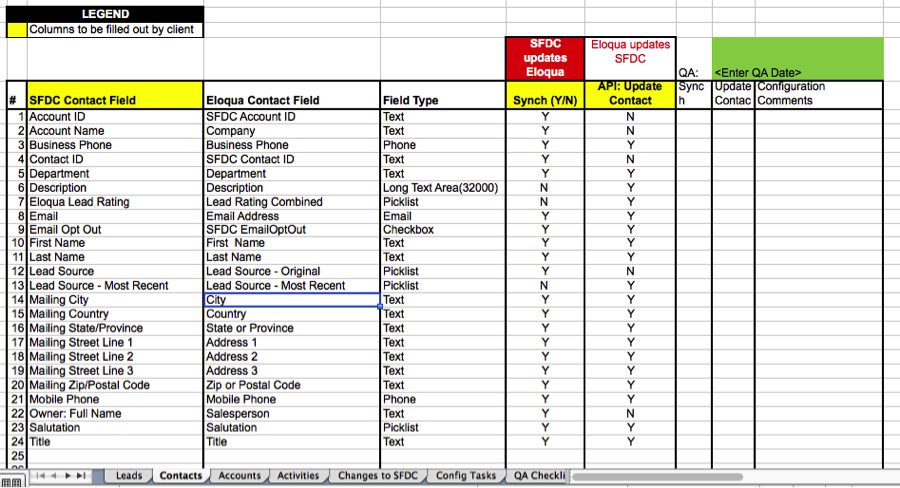
I know, it’s been some time since you’ve last reviewed, possibly as far back as your implementation, so no better time than the present to dust off this reference to assure current mappings still meet your business and marketing needs. This spreadsheet will serve as your master reference guide as to how your Oracle Eloqua instance integration is set up, including breakouts (tabs) based on respective CRM Objects (Contacts, Leads, Account, Custom), for both Inbound (Retrieve) and Outbound (Send) calls.
How to leverage:
- With spreadsheet in hand, review to see if a) it’s set up as intended (fields mapped), and b) you’re pulling/sending over data aligns with your marketing needs.
- If you have new Custom Objects in your CRM that haven’t been integrated into your instance and would be of benefit to segmentation needs, then use this opportunity to build out and bring over to an Eloqua Custom Object and capture on your reference sheet.
- Should you not have a Field Mapping spreadsheet, say, if you came on post integration or it was somehow misplaced, create this now by referencing your external call mappings and/or external call (see screenshot below).

5) Clean up your Naming Conventions

Establishing consistent naming conventions and storage paths is critical in keeping you from pulling out your hair. We’ve all been there. That moment when we realize our naming process wasn’t as clean as we envisioned, typically when we’re trying to locate an asset via search tool and/or when developing our reports in Insight.
How to leverage:
- Whether you leverage the Naming Convention spreadsheet available on Topliners (https://community.oracle.com/docs/DOC-895578) or develop your own, define a process internally to keep your resources clean, consistent and easy for one to find (folders, assets, images, lists, etc.).
I could go on and on, but these are great places to start and fairly quick wins to check off. So, whether you’re OCD or just have simple cleaning best practices in place, we’d love to hear about it. Please share via the comments section below.
Happy Cleaning!
Share This
About the Author: Relationship One