Your house is only as strong as it’s foundation. Same holds true for your marketing automation platform. Returning back to basics allows one to put on their digital structural engineer hat to ensure their platform’s foundation will support envisioned MarTech expansion.
Although the marketing automation platform focuses on Oracle Eloqua, the concepts and logic are transferable to most other platforms.
Audit Your Contact Bandwidth
It’s not just a best practice, but also a contractual obligation. Each Oracle Eloqua instance is contractually bound to staying within their agreed upon database band. With this threshold in hand, reference the home screen of your instance, post login. In the upper right-hand corner, you’ll find the current count of your database (Overview > My Contacts).
If you’re over or nearing surpassing this threshold, increasing your contracted bandwidth may be warranted, but a review of your existing database may provide other opportunities to free up some space.
Unreachables
These are contacts who have opted-out of receiving communications from your organization or are marked as hard bounceback due to a permanent failure message being delivered upon delivery. Neither one can be communicated to—via email channel—hence the unreachable reference.
By navigating to Insight, you’ll find the Database Health Dashboard, which presents a visual overview of contacts in your database currently with this classification.
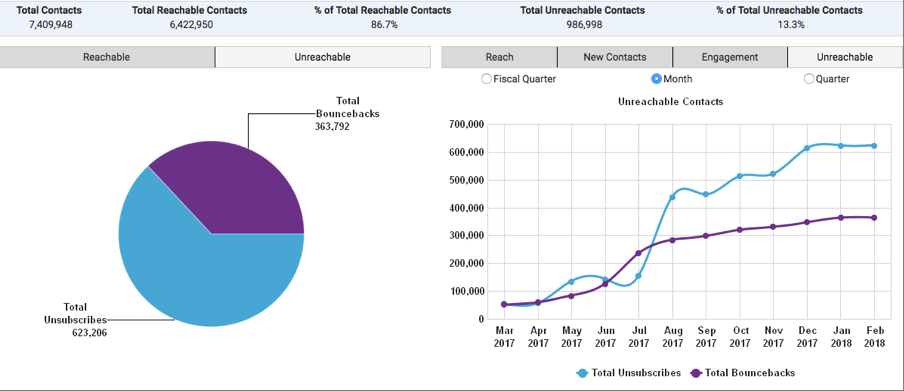
Your next step would be to further audit these records and determining if there is a valid use case for keeping them in your database, knowing you’re unable to communicate via email channel to them. Reasons could include SMS/MMS, social, web tracking, etc. If no, then these are prime for purging.
Inactives
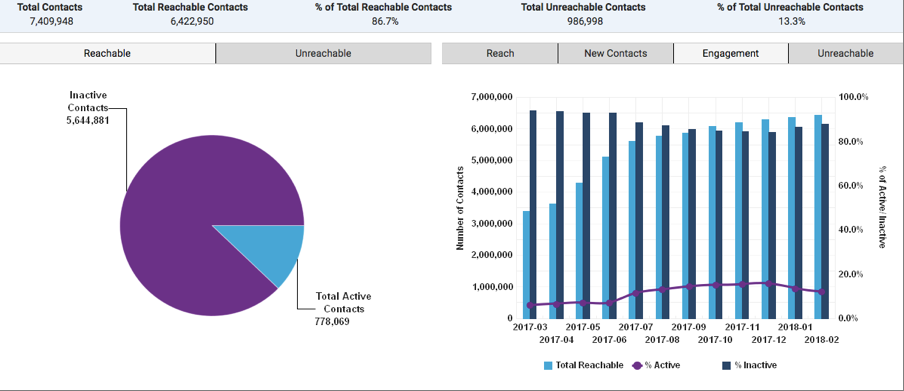
Like the Letgo App commercials, “dude, you got to let it go.” At what point do you loosen the grip and finally sever the relationship of contacts that are just not that into you? The answer can vary per customer, vertical, and/or product. If your definition aligns with Oracle Eloqua’s Database Health Dashboard definition—no inbound activity in the past 1-12 months—then you’ve found your resource.
If it’s more complex, then you can leverage Segments (Audience > Segments > Create a Segment) and run filters against your database to best mirror your internal definition. For example, contacts who have been sent at least X emails in last X time and have never performed any response action (click, form submit, etc.).
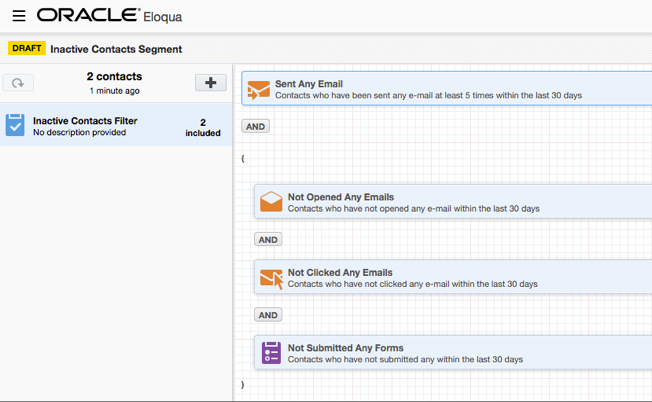
Take it a step further and save your filter within this segment for repurposing on the canvas and/or Master Exclude should you desire a real-time decision/suppression check.
As with unreachables, it should also be determined if there is a use case for keeping particular records in your database, for example, one opts out of emails, but opts into SMS/MMS. If no use case exists, consider introducing a sun-setting program to re-engage these contacts prior to saying goodbye.
Soft Bouncebacks
“But wait, aren’t soft bouncebacks just temporary delivery failures?” They could be, but I always recommend highly scrutinizing these types through both the Email Bounceback History with Messages report found in Insight (SMTP 400 Error Codes are typically soft bounce classifications), as well as using Segments to identify contacts who have consecutively soft bounced over a determined period of time or touchpoints (e.g. four times in 30 days) to avoid hitting a recycled spam trap.
Introducing an automated process to feed these contacts into a program to force set an opt-out status would be considered a best practice, as often times email addresses become dormant, decommissioned, and released for Recycled Spam Trap repurposing. Same caveat as above, if there isn’t a use case for keeping them, opportunity to further purge records from your database.
Audit Data Fields
Contact and Account fields are not infinite. Upon Oracle Eloqua first provisioning your instance, you are allotted 250 total fields each (includes Oracle Eloqua’s out-of-the-box fields, e.g. email address). This may seem like a lot, but those fields can get used up quickly. Aside from the obvious utilization of Custom Data Objects serving as extension tables, reviewing existing fields—whether you’re near the count threshold or not—should be a standard audit practice. This audit will help determine data fields that aren’t really being utilized as well as the quality of the values within.
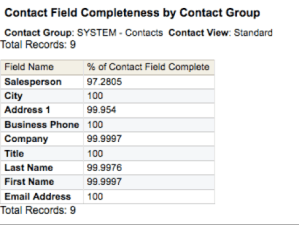
Run a Completeness Report
This can be gone about a number of ways, including the following:
Step 1) Navigate to Audience > Tools > Shared Lists > Action Icon (>>) > Contact Field Completeness Report

Step 2) In the wizard redirect interface, choose your Contact Group (Shared List), your view (All in this case), and lastly View Report.
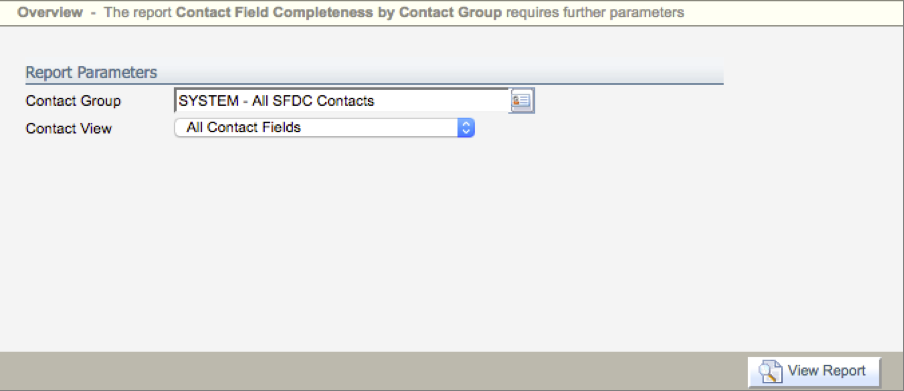
Note, ideally you’d have a Get Contacts shared list continuously populating via integration synch (if applicable), otherwise, may require creating a new shared list.
Step 3) Post population, change up view (bar chart, column chart, line chart, pie chart) and/or export
Audit the Values
Audit the actual values within the data fields in order to identify accuracy and opportunity for standardization. Like the completeness review process, there are a number of ways one could go about doing this. You can run an export of your database and filter down per column header or utilize Eloqua’s Field & Views interface by finding the desired field then clicking on Field Population Details > View, which opens up a new tab and lists out values with counter should total unique values be under 1,000.
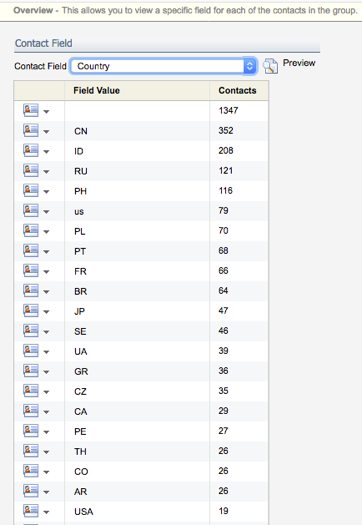
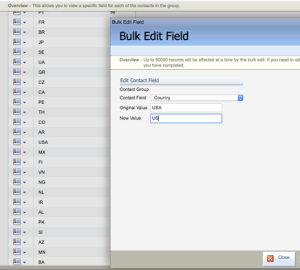
In the example shown above, there is an opportunity to cleanse value “USA” to align with the two character ISO Code value. For a quick fix this update can be made directly on the contact record via profiler, export/import with purpose of updating, or simply clicking the down arrow to the left of the values above for the drop down. For a longer-term solution, incorporate these values in a Contact Data Washing Machine program that regularly looks for non-standard values and normalizes them within the field.
Audit Your Picklists
Lastly, audit the existing picklists to ensure captured values are still current/accurate. If a field has scattered, aka dirty values, it may also identify opportunities to create new picklists so marketing users can move to a more fool-proof process of data hygiene.
Audit Instance Users
Marketing Automation expertise continues to be in high demand. Which is great at an individual level, but it can also turn into a revolving door positionally for an Eloqua customer. Throw in various vendor/agency partnerships, and your number of Oracle Eloqua users can fill up quite quickly. A quick win audit would look like this:
Step 1) Navigate to Settings (gear icon) > Users and Security
Step 2) Under All Users, review these users to identify if there are enabled users (if enabled, their icon would be in color) that are no longer with the company or current partners/vendors who’d still need access. If they are no longer relevant, disable them simply by clicking the drop down icon to the left of one’s name and selecting Disable User
Please ensure you Disable User and NOT Delete. Deleting users can potentially produce the following:
- Campaigns/Programs ran by that user will no longer work
- You’ll lose access to certain reports
- You’ll lose audit trail on who created an asset, who modified, etc.
Step 3) For those that will remain enabled users, review their security group permissions to ensure they have the appropriate rights/privileges based on their roles and responsibilities. You can add multiple security groups to an individual user rather than create a purely Custom Group, but its important to note Oracle Eloqua will always default to the most “lenient” rights. So if a user has a Basic Marketing security group assigned as well as Admin security group assigned, their rights will be what the Admin group allows as it provides the most access.
You can access a respective Security Groups configuration by navigating to the Groups tab (same interface) and clicking on a particular group. An overview breakdown will then populate to understand Licensing, Interface Access, and more. If you find your business requires a Custom Security Group, it is recommended that you copy an existing security group first and edit the newly created copy. Adding and removing access and abilities can make it easy to perform an update with an unintended negative affect to rights elsewhere in the system. Leaving the original security group intact gives you a workable version you can always go back to.
Step 4) Speaking of licensing, now would be a good time to go back to your original Oracle Eloqua contract. If you’ve purchased Sales Tools, this contract would identify the quantity (also not infinite). Ensure that a) you’re utilizing an add-on you’re already paying for, and b) assigning to the appropriate users in Eloqua.
You can quickly get an overview of these current counts by navigating (same interface) to Users drop down in the top navigation bar > select License Usage Overview.
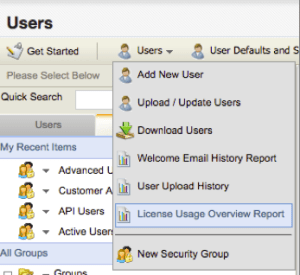
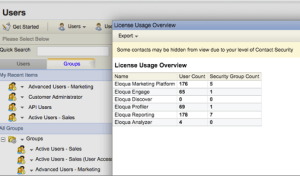
The count values are actually hyperlinks which, upon clicking, present an itemized list of users assigned respective licenses.
Audit Security Settings
“Oh, we’re fine with the default security settings.” Subjectively speaking, this response causes me to mentally playback Alan Rickman’s (RIP) fall scene from Die Hard on loop. Oracle Eloqua is a Cloud-based solution, and with it housing very personal and sensitive customer data, you’re (again, subjectively speaking) doing yourself a disservice by not lessening potential vulnerabilities. This isn’t to say the default security settings wouldn’t suffice, they’re great and they could, but if you have the option to increase the complexity, why leave it on the table?
Now, there are a number of configuration options available, but I’ll stick to the rule of three and focus on the following:
General Security Configuration
Within this interface, you have the ability to lengthen/lessen the password expiration (in days), max invalid login attempts, and one I always highlight – session time-out period. Why you ask? For mobile/remote folks, as well as those who want to get out of the office periodically, should you forget to put your laptop to sleep and walk away (e.g. rest room, take a call, etc.), you leave yourself highly exposed.
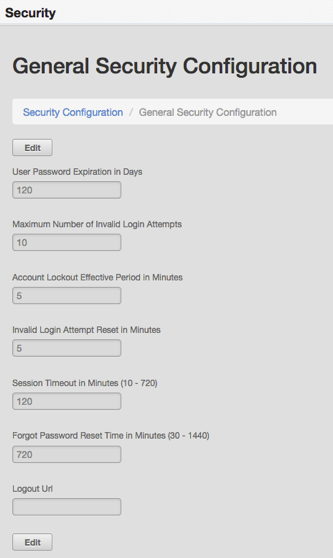
Password Complexity Configuration
Not much need to elaborate, this configuration interface allows just that, option to further strengthen password complexity (minimum length, use of characters, password reuse).
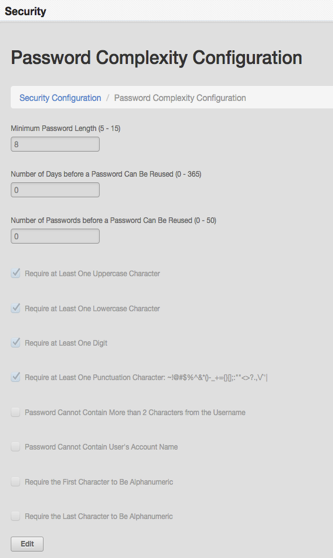
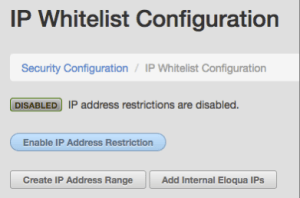
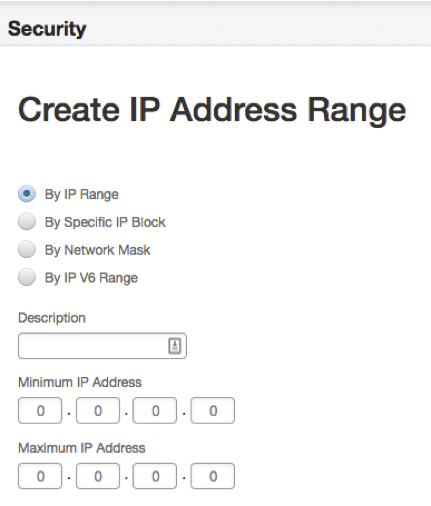
IP Whitelisting Configuration
This configuration interface allows you to set access restrictions by identifying IP address and ranges within. Any user who tries to log in from a computer with an IP address not included in the whitelist, access would be denied.
This assists with:
- Prevent unauthorized users from using Oracle Eloqua credentials.
- Ensure that former employees can no longer access Oracle Eloqua (assuming a disabling of internal and VPN network access of employee)
Customizing your security settings is not a requirement, but I recommended it. It should be a larger conversation that could include your legal team, if you have one, as their may already be compliance process in place for any cloud solution you may secure.
In closing, this is in no way an exhaustive list, as we haven’t even touched on integration, web tracking scripts, branding & deliverability, etc. Future blog post? Quite possibly. Until then, we’d love to hear your back-to-basics additions or requests on what you’d like to see in a follow up to this post.
Please comment below or contact us.
Share This
About the Author: Relationship One