Creating and maintaining clean data is an ongoing challenge for every company. Your segmentation, data privacy, personalization, lead scoring, and lead routing all rely on structured data in key fields. Ensuring that the data from the CRM system, automated imports, and form submits follows picklist values is critical. But even with those checks in place, if people are uploading lists (humans aren’t perfect, you know), you probably have periodic or ongoing data quality issues.
At this moment, can you say with confidence that:
- The data in your key fields is clean?
- You have Contact Washing Machines for all key fields as needed?
- Your Contact Washing Machines are catching all dirty data and converting it into the picklist values?
If you answered “No” or “Maybe” to any of the above questions, a two-minute audit of your key fields is in order. Follow the steps below to view the field-level data. If needed, you can make quick updates to field values across Eloqua. You can also make quick updates to a subset of the Contacts in a Shared List.
One click to update them all
In Eloqua, you can quickly view the values in a field to identify the quality of that data.
As an example, let’s look at the Country field. Given that Country drives your compliance for global opt-in and privacy laws, unstructured or blank values in your Country field can cause serious consequences.
Let’s view the data:
- Navigate to Settings > Fields and Views.
- Click on the Country field.
- Click View below Field Population Details.
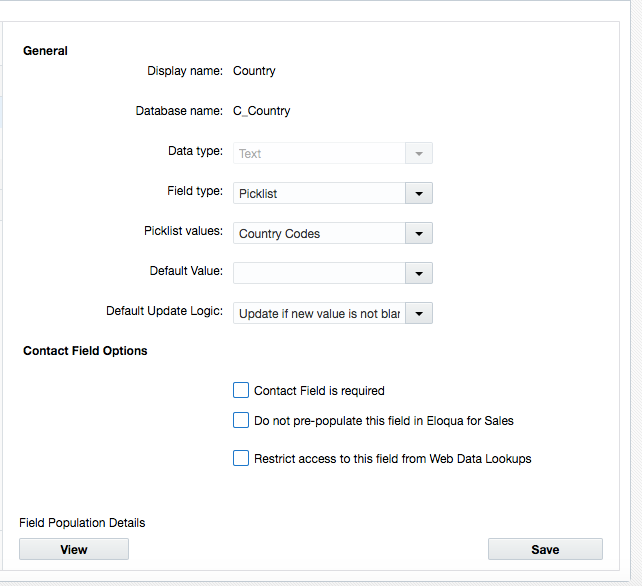
This view lists all the values stored in the selected field and the number of contacts with the corresponding value. Note: this will only display up to 1,000 unique values. If the number of values exceeds 1,000, you will need to export the data to review it. In the case of Country, if you have more than 1,000 unique field values, it is probably an indication that you should change an existing one or that you need a Contact Washing Machine.
In addition to checking this view for data cleanliness, you can also use it to see if the breakdown across your Eloqua instance is correct. For example, I recently worked with a client to map a new field from their CRM into Eloqua. After the import, we used this view to confirm that the number of records in Eloqua for each Business Unit matched their CRM.
Using our Country example, in my instance, I see 142 Contacts that have “USA” as their Country value instead of the picklist value of “US”. With a couple of clicks, I can change the record values from “USA” to “US” (for up to 50,000 records):
- Click Edit in the drop-down menu next to the field value.
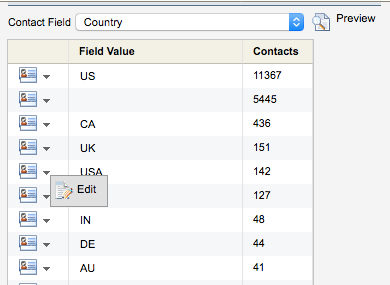
- The Bulk Edit Field window opens, which displays the Contact Field name and the existing value in the Original Value field.
- Enter the new value in the New Value field. In this case, “US”.
- Click Save and Close.
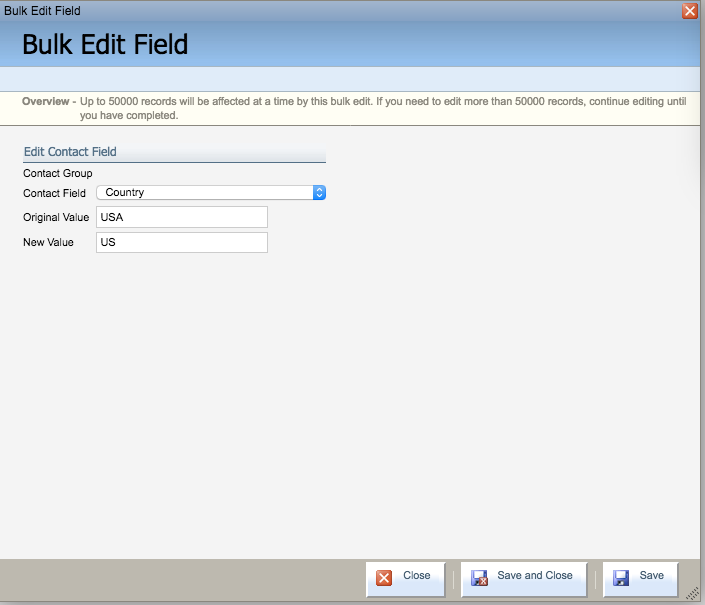
- Eloqua will ask you to confirm the update. Click OK.
The “USA” value in 142 records has been updated to “US” in one effective and powerful click. Note: once the fields are updated, there is no way to revert or know which fields were updated.
This works really well if you want to update across your Eloqua instance. But what if you want to update a select group of records? There’s a short cut for that too.
MY PRECIOUS tip for updating values
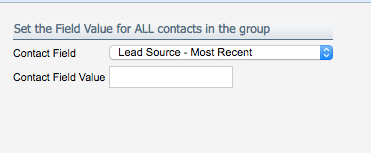
Need to update a field value for only a subset of Eloqua contacts? If they are in a Shared List, you can do it. For example, let’s say a marketing user uploaded an event list and forgot to include the Lead Source – Most Recent value. You could go back to the marketer and ask that they update their Excel file and re-upload the list, or you could open the Shared List that was created from the list upload and do the following:
- Navigate to Field Values from Settings.
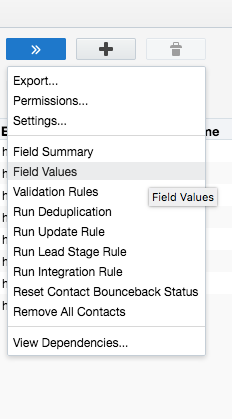
- Select the Contact Field you wish to update for all the Contacts in your Shared List.
- Set a value for the Contact Field Value. In this example, I enter “Open House” for the Lead Source – Most Recent field.
- Click Save and Close.
- Eloqua will ask you to confirm the change. Click OK.
The Contacts in that Shared List (up to 50,000) have now been updated with “Open House” for Lead Source – Most Recent value.
The above tips should be an infrequent method to clean up data. If this becomes a standard process for cleaning data, it’s time to review your Contact Washing Machines, list upload processes, and other governance procedures.
If you have any questions or comments, please leave a message below or contact us.
Share This
About the Author: Heidi Huffman