Have you heard of it? Have you seen it, played with it? We previously posted an article introducing the new Oracle Eloqua Program Canvas. If you have not read it, you should check it out.
Now that Program Canvas has been released and we have had time to see it in action, we have a few more use cases to tell you about.
Our previous article told you about the two different types of Program Canvases available in Eloqua: Contact Program Canvas and Custom Object Program Canvas. I want to go over each of them in a bit more detail.
Program Canvas for Custom Objects:
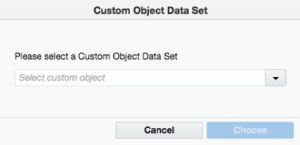
If you look at the Program Canvas designed to manage Custom Objects, it may seem like it lacks features compared to the Program Canvas for Contacts. However, this tool has some pretty strong functionality when it comes to what it can handle with Custom Objects.
- Each CDO Program Canvas must be assigned to a single CDO
- This may seem tedious at first because you must setup a different Program Canvas for each CDO you want to manage, but the more you use it, the more you get used to it and understand why it is necessary to keep your records managed correctly.
- Keeping a strong naming convention will go a long way. For example, use the name of your CDO in the name of your Program Canvas then if you decide to send contacts from one Program to another, it will be helpful to have the name of the CDO shown in the list of Programs to choose from.
- The Canvas can pull in new or modified CDO records from your assigned CDO by utilizing the Custom Object services.
- This allows for near real time processing of your records, whether the CDO record is newly created or modified.
- As mentioned in our previous article, records fly through the steps in the Program Canvas versus 15 min per action step in the Standard Mode Program Builder. This can save a tremendous amount of time when you need to process records to send to a sales team.
- Keep this in mind when migrating an existing program builder program to Program Canvas
- Have you ever needed to delete Custom Object records? Perhaps you need to periodically remove records based on date or status. This function couldn’t be done in a typical Eloqua program within Program Builder. But, now you can do it within Program Canvas. Here’s how:
- Send records from the CDO, using Custom Object Services, evaluate the record using one of the Decision steps like “Compare Custom Object Fields” or the “Compare Date” Decision, then decide if the records needs to be deleted using the “Delete Custom Object Record” action step.
- Some clients use this feature to keep their Custom Objects cleaned up on a regular basis.
- Run Update Rules on your CDO records
- Make sure your update rules are created for your specific CDO
- If you created an update rule but don’t see it available to choose when configuring your “Update Rules” action step, most likely it was not setup for the CDO that was selected for the Program Canvas you are configuring.
- Make sure your update rules are created for your specific CDO
- Add or Move to a Program Builder
- Keep in mind that the records that will be added or moved from the CDO Program Canvas to the Program Builder will be the Custom Object records and not Contact records
- As of today, you are not able to send from Program Builder to the Program Canvas
- Since there are a few functions still only available in Program Builder, you might find yourself using Program Builder to modify CDO records, then use the Custom Object Services for that CDO to send the modified record to the CDO Program Canvas.
- Maybe you need to get your Custom Object records from your CDO to a Contact Program Canvas. Perhaps you use a CDO as an entry point for leads then want to pass them off to a Contact Program Canvas for further updates to the Contact table.
- Use the Custom Object Services in your CDO to send new or modified linked records to the Listener step on the CDO Program Canvas that is assigned to your CDO.
- Make any updates or edits on the CDO record within program canvas, then use the Action “Add Linked Contact to Program”
- This will pull the contact linked to the CDO record into a Contact Program Canvas
- You can also move the linked records back to the CDO Program as well.
Program Canvas for Contacts:
If you have used the Campaign Canvas and the Program Builder in Eloqua, you will find that the Program Canvas for Contacts has the speed of the Campaign Canvas, and the future plan is for Program Canvas to have most of the features of the Program builder.
- Just like Campaign Canvas, you have the same tools section in the left column
- Data Sources – Listener, Segments and other feeders
- Decisions – Compare fields, both Contact and Custom Object fields
- Actions
- Add and/or Move to:
- Campaigns
- Other Contact Program Canvas
- Program Builder
- Add Linked Record to a CDO Program Canvas
- This will take the CDO record that is linked to the Contact in the step and send it to a specific CDO Program Canvas.
- Update Rules
- Contact Washing Machine
- Oracle Marketing Cloud apps and 3rd party apps such as the Relationship One cloud apps (R1) can be downloaded and used. Below are a few popular R1 apps.
- R1 Object to Contact appender
- Use this to write data from the CDO record to the Contact table matching on a specific field. Simply create a Custom Object to use as your lookup (the Source), define your match rule, and add all the fields you want to append to a matched Eloqua Contact (the Target) record
- R1 Global Unsubscriber or Subscriber
- Each of these apps allows you to either globally subscribe or unsubscribe Eloqua Contacts as part of a Campaign or Program. Just drag the Cloud Action onto your canvas, add Contacts, and you are done.
- R1 Campaign Date Checker
- Use this to allow or restrict members from moving through the program on specific dates.
- R1 Form Submitter
- This Cloud Action allows you to generate an Eloqua form submission using Eloqua Contact, linked Account or static value information. If you are storing submission data within an Eloqua Custom Object, you can even append a unique submission identifier.
- R1 Premium Apps
- Twillio apps
- Etouches apps
- Eventbright
- R1 Object to Contact appender
- Add and/or Move to:
For more information on the Relationship One Cloud apps, both private and public, please Click here.
Program Canvas is still evolving and will be for some time. To stay informed with the updates on it as well as the Eloqua system visit the Oracle Eloqua Release Center to find information about the latest features as they become available.
If you have Eloqua and you need support with email strategy or building emails, please contact us! We love helping companies transform their marketing automation.
Share This
About the Author: Kim Amato