If you are not familiar with the Personalization Manager app for Eloqua and are struggling to personalize content, discover the Personalization Manager app for Eloqua. This app extends your Eloqua capabilities, allowing you to tailor dynamic personalization for emails, landing pages, and external channels using Eloqua Custom Object data. Here are just a few examples:
- Send order or shipping confirmation messages that include a dynamic table personalized using data from multiple Custom Object rows
- Create an Eloqua landing page that includes data from one or multiple Custom Object records, like an order summary or year-end activity report
- Export mapped Custom Object data, individual records, or multi-row data, from an Eloqua canvas in real-time or on a defined schedule for external channels like telemarketing, display advertising, etc.
- Create householding campaigns that let you personalize communications for each “shared” or “household” Custom Object record that is linked to the same email address
- Send event confirmation emails providing a summary of registered sessions, stored as Custom Object records, and link to a confirmation landing page
Basically, with this app, you can personalize Eloqua emails, landing pages, and create data exports using data from one or many Custom Object records.
With the latest update to the app, the new “Eloqua Import” channel option expands its functionality even further. Let me tell you about it.
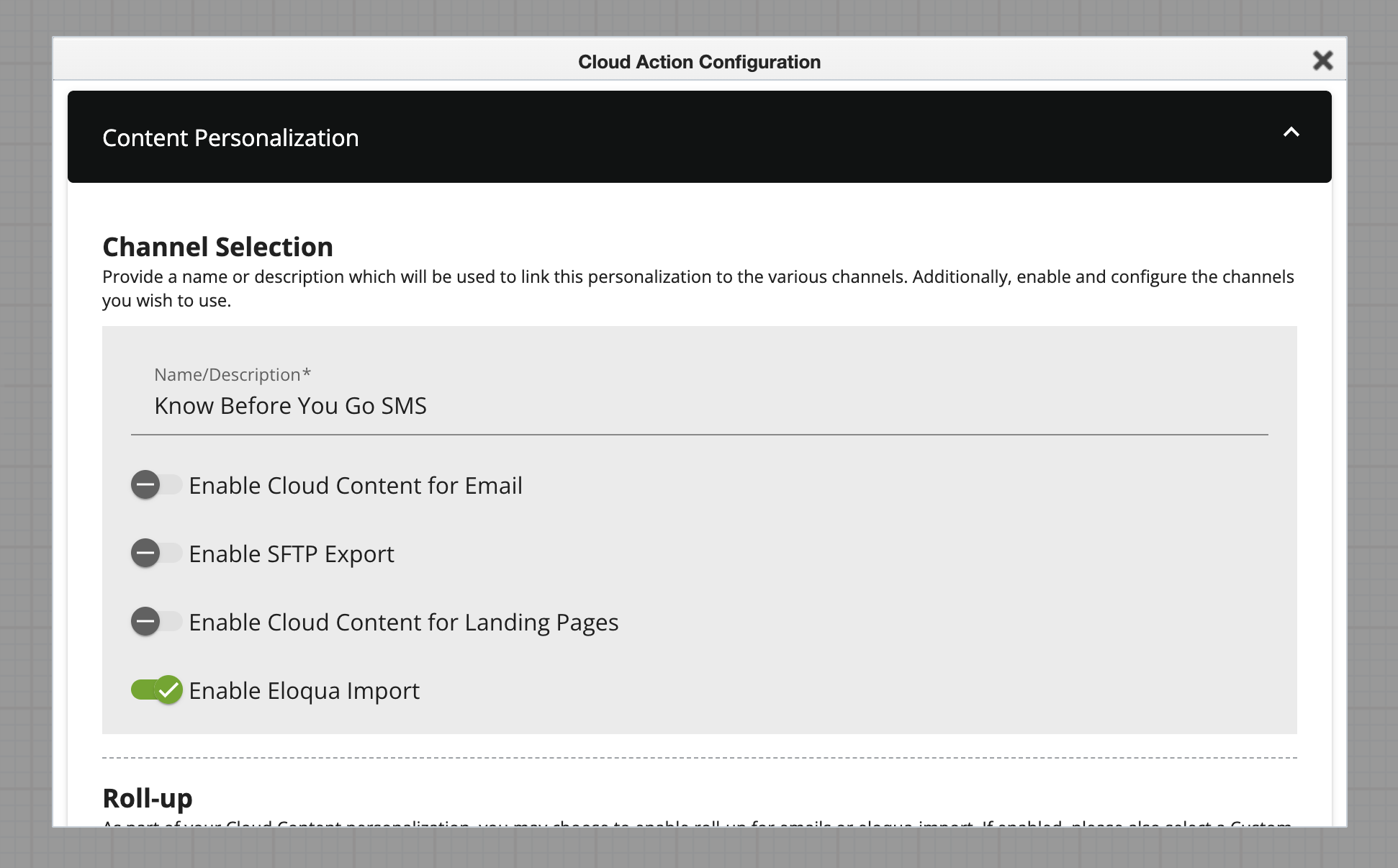
You can leverage the Personalization Manager App in an Eloqua Email Campaign to craft detailed updates, newsletters, and promotions using CDO data. Enhance your reach by integrating Eloqua SMS, using the new “Eloqua Import” channel, enabling direct communication on your audience’s preferred device. SMS is ideal for urgent, concise messages such as flash sales and appointment reminders. Combining email and SMS creates a more powerful and effective communication strategy.
Configuring the new “Eloqua Import” channel option may seem counterintuitive at first. Importing data into a new Eloqua Custom Object when the source is also an Eloqua Custom Object may not make sense, but it is a required step. The new, temporary CDO acts as a temporary holding space, a staging area that allows the Personalization Manager process to restructure data and enable further campaign orchestration, especially for leveraging Eloqua SMS or other SMS providers, such as Twilio, to send personalized text messages similar to Cloud Content for Email.
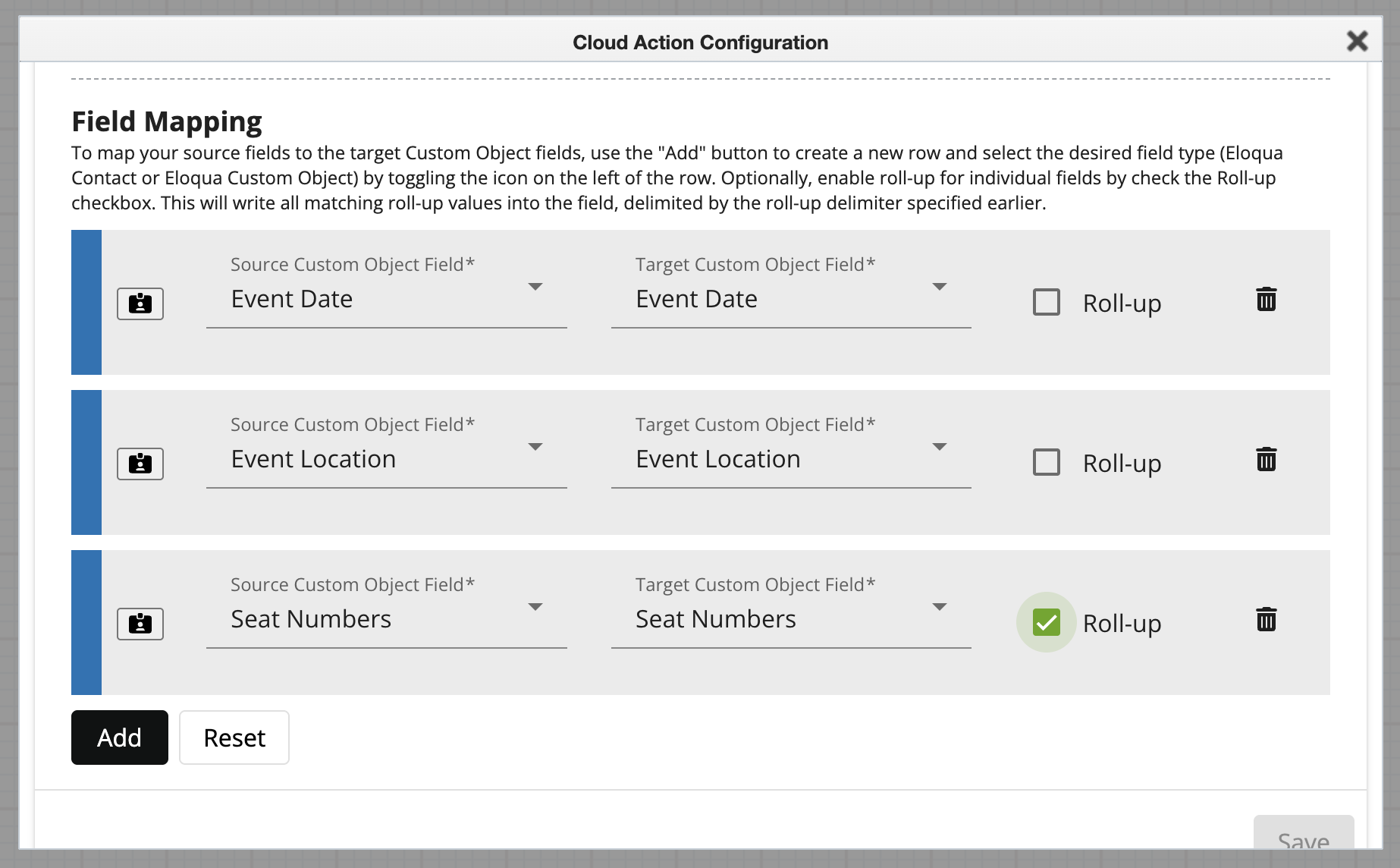
The SMS step can be used in the same campaign flow configuration as Email. When creating the SMS message, use the newly created temporary Custom Object to add field merges for personalization. Where multiple emails would be sent (ex. householding or shared email use case), the contact will flow through, and an equal amount of text messages will be sent. Where an email would contain roll-up data in a single email, the roll-up fields will be written to the designated field with the designated delimiter and can be added to the message to display as a list.
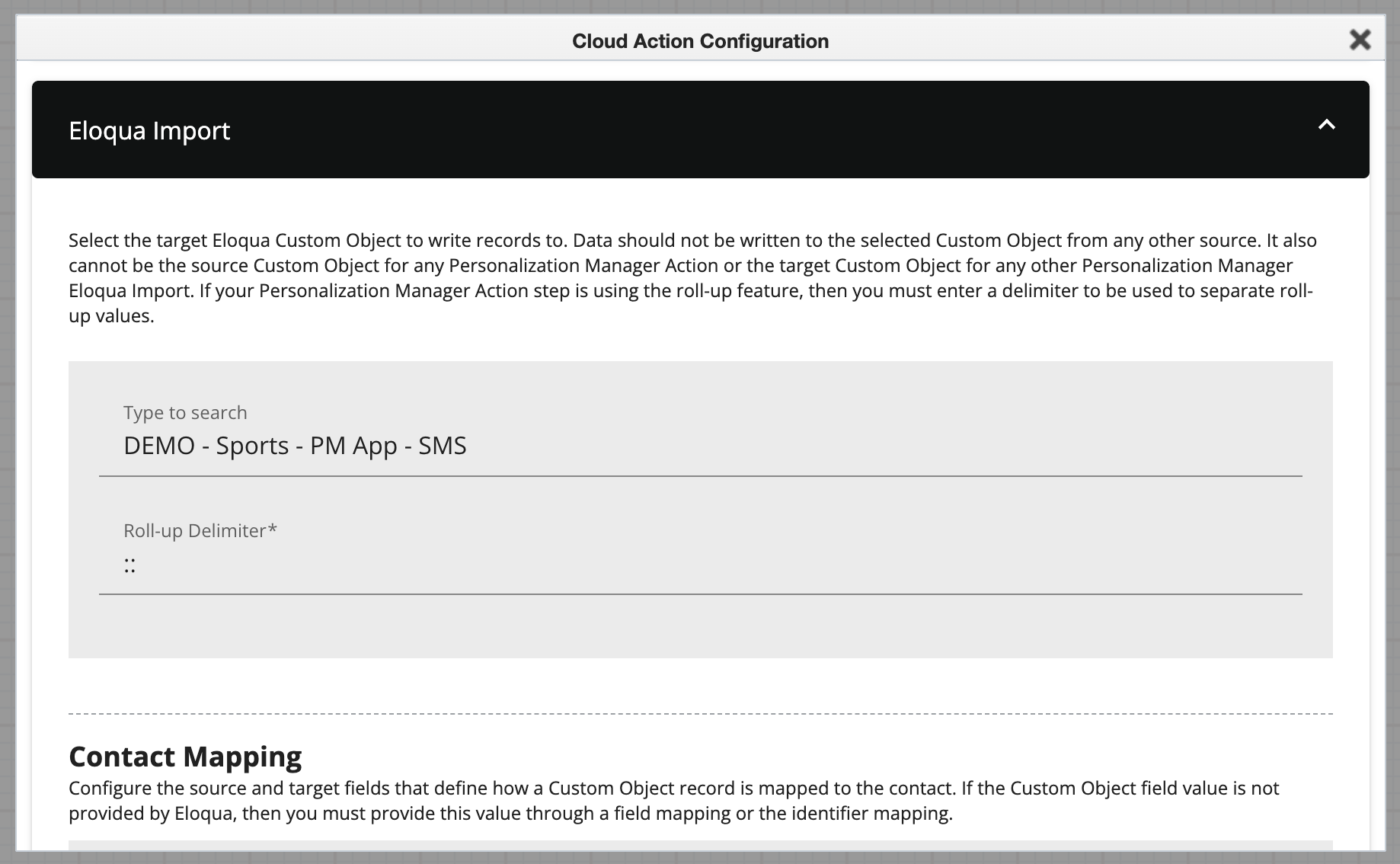
The beauty of Custom Objects is that you can have multiple records with the same email address that qualify to enter your Campaign, but you don’t want to send multiple emails or SMS messages. Using the Roll-up and Roll-up Grouping lets you precisely control which CDO records to include in a single email. If you wish to send a single email per contact with data for all of their associated CDO records, you might roll up by the contact’s email address. Alternatively, if you wish to send 1 or multiple emails to the same contact, such as a separate email for each of the contact’s orders, you might roll up by an order ID.
To maintain organization, temporary CDOs should adhere to a one-to-one naming convention with each “Eloqua Import” channel step executed by the Personalization Manager. Additionally, implementing a cleanup strategy is recommended, as these temporary CDOs are no longer necessary once the campaign concludes. Here are a few options.
Begin by establishing a folder structure for your temporary CDOs, perhaps organizing them by Campaign. It’s also helpful to incorporate the Campaign ID into your temporary CDO names and use it as a prefix for your merge fields.
- Option for deleting the temporary CDO records after your Campaign is complete.
- Utilize CDO Object Services to feed records from the temporary CDO to a CDO Program Canvas. This will allow for the deletion of records after the Campaign concludes.
- You will need to manually delta the CDO after the records have all been removed
- Options for keeping the temporary CDOs
- After the Campaign is sent, you can use the Temporary CDO like you would any other CDO. It is just filtered from its Parent CDO
- Send to a CDO Program Canvas for further processing
- Use in future Segments
- After the Campaign is sent, you can use the Temporary CDO like you would any other CDO. It is just filtered from its Parent CDO
If you are new to the Personalization Manager App and would like more information or just need help with the new SMS channel option, give Relationship One a call. We are here to help.

Share This
About the Author: Kim Amato