The dreaded spam complaint. If unsubscribes are email’s version of breaking up, then spam complaints are the restraining order. Through these complaints, inbox providers can adjust their filters to better serve and protect their users. In return, certain inbox providers offer a process where email senders can receive notifications as these complaints come in, referred to as a Feedback Loop.
For those who’ve gone through Oracle Eloqua’s Branding & Deliverability configuration process, the Oracle Deliverability team applied for all available Feedback Loops in order to have complaint data reflected in Insights (Spam Unsubscribe), as well as auto-magically opting respective complainers out from receiving future Oracle Eloqua communications.
Inbox providers included are:
- AOL
- BlueTie
- Comcast
- Cox
- Earthlink
- FastMail
- Hotmail
- Laposte
- Locaweb
- RackSpace
- RoadRunner
- Synacor
- Telenor
- Terra
- Tencent QQ
- UnitedOnline (offers a Trusted Sender List)
- net
- Xs4all
- Yahoo! (requires DKIM setup)
- Zoho
For some Oracle Eloqua users, there may be a glaring omission, Gmail. This is due to Gmail not offering a traditional feedback loop. Although the opt-out will be reflected in your system, these spam complaints won’t be present in Insight reporting*.
*Per Oracle, occasionally you may notice a couple of complaints appear in your reports for Gmail. These complaints are recorded when a recipient replies to a message with “spammy” words that their system senses and categorizes as a spam complaint. They add, this is a rare but possible scenario.
So, how can one go about monitoring their Gmail performance? Well, for high-volume senders who leverage dedicated IP addresses (not shared range), you can monitor Gmail’s Feedback Loop along with a suite of other diagnostic dashboards via Google Postmaster Tools (https://gmail.com/postmaster/). For traffic that passes SPF or DKIM authentication, you’ll find data within the following dashboards:
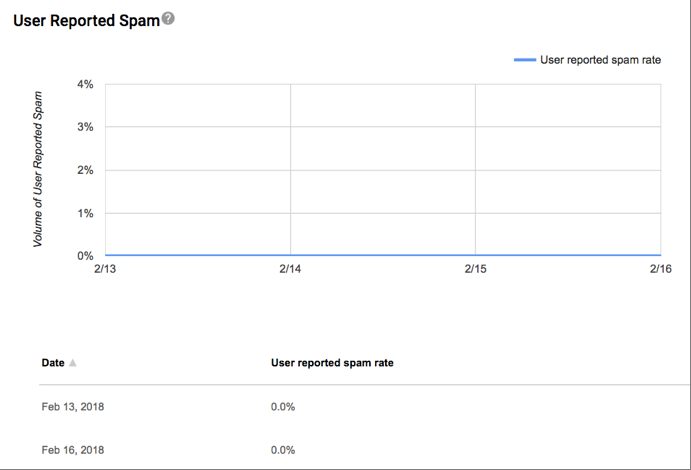
Spam Rate – highlights the volume of user-report spam vs. email sent to inbox (DKIM authentication required)
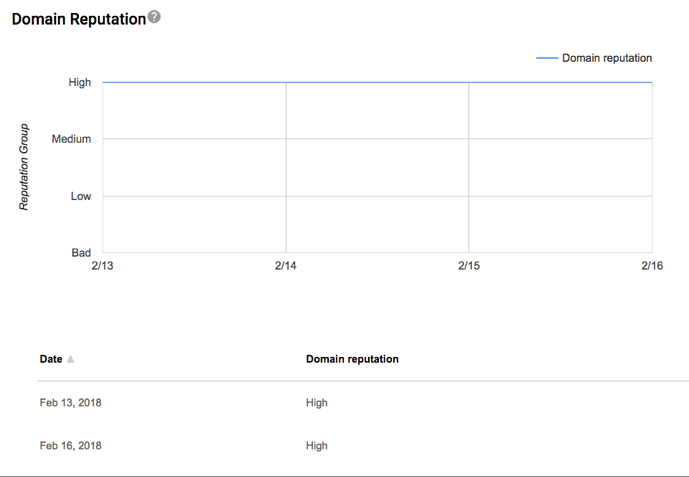
Domain & IP Reputation – insight as to whether Gmail spam filters might mark emails from Domain or IP as spam or not.
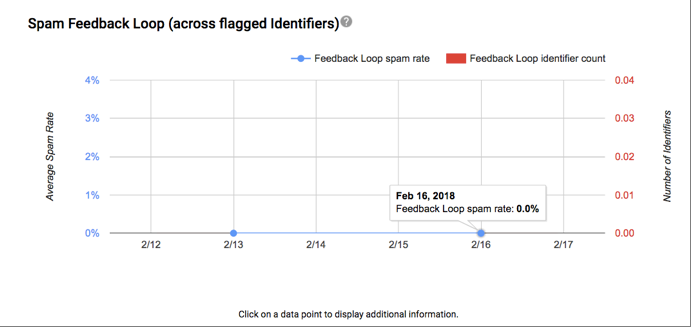
Feedback Loop – shows average spam rate across all identifiers flagged on a given day and the number of unique identifiers flagged by FBL per day (when applicable) over time.
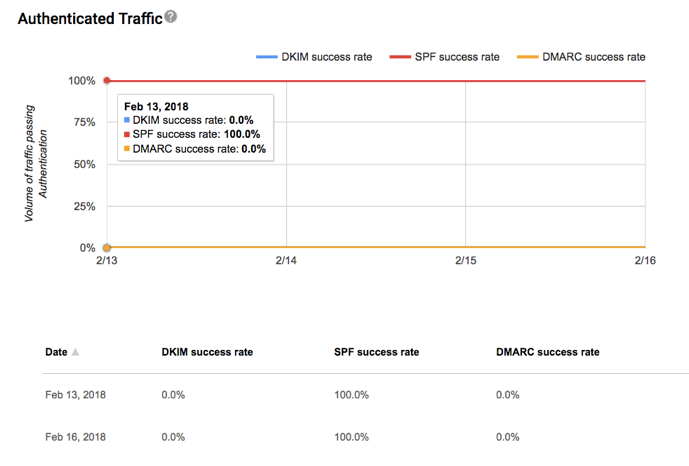
Authentication – captures traffic that passed SPF, DKIM, and DMARC over all received traffic that attempted authentication.
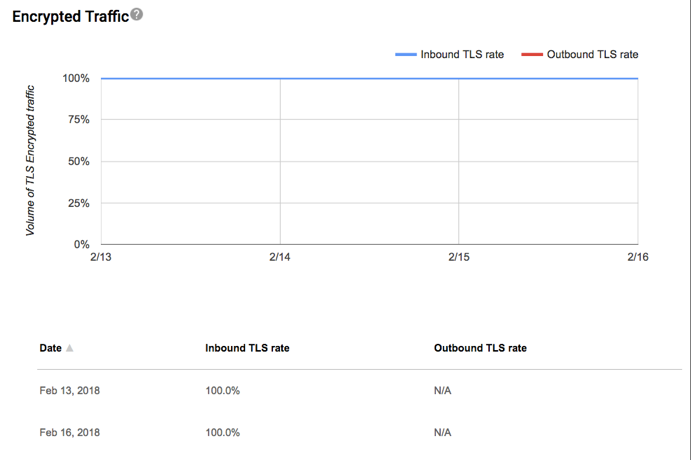
Encryption – features TLS encrypted traffic vs. all mail received from that domain, and consists of two distinct graphs within the same dashboard. By default, all Eloqua senders have TLS enabled for Gmail and all outgoing mail. There is nothing you need to do to enable this on your end.
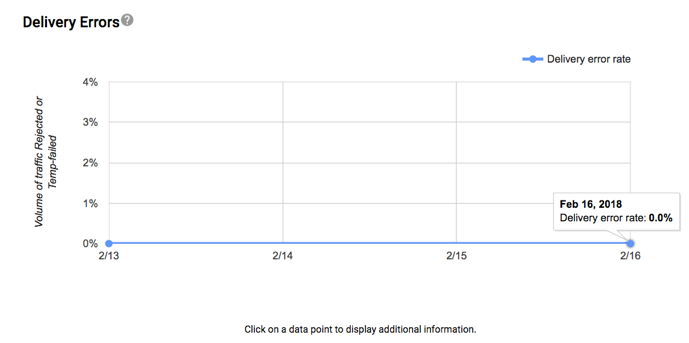
Delivery Errors – presents rejected/temp-failed traffic vs all authenticated traffic coming from that domain.
If you’re still reading, you’re now thinking, “great, how do we get setup?” If you have a Gmail account, then you have two options:
A) Oracle Deliverability Team – open an SR and request. They’ll need the domains you require access to, your account short name, and the email addresses of all those who need viewing rights for these reports.
B) Set up Postmaster Tools yourself through the steps below (it’s super simple, I promise):
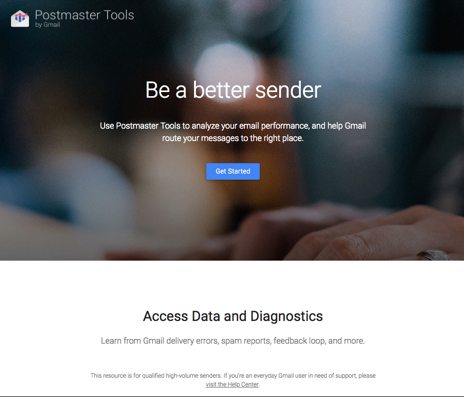
Step 1) Navigate to https://gmail.com/postmaster/ and click Get Started
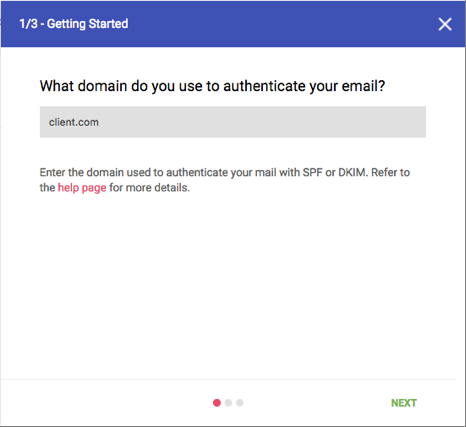
Step 2) Enter the domain/sub-domain you use to authenticate your email (e.g. client.com, example.client.com).
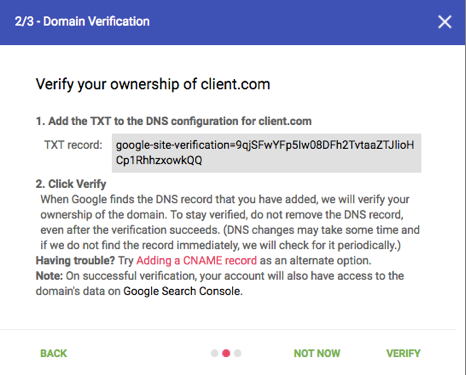
Step 3) Copy the TXT record and add it to your DNS configuration. Once configured and propagated, click “VERIFY.” Note, you can continue the Postmaster Tools configuration while waiting simply by clicking “NOT NOW.”
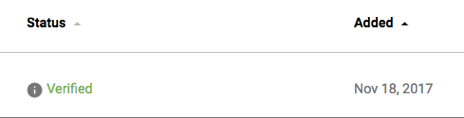
Step 4) Once verified, give it a couple of days of high-volume sends in order for data to be reflected in Postmaster Tool dashboards.
Closing Tips/Notes:
- Once you verify your root domain via the DNS TXT records, you can add any subdomain without having to add additional records.
- Create a net new Gmail address to be shared by all users, rather than sharing your personal login information.
- To set expectations, note that the feedback tool only includes aggregated spam statistics, which cannot be traced back to the email address of the individual recipient who marked the email as spam.
As the adage goes, “it takes years to build a reputation and just minutes to ruin it,” so stay at the forefront of your sender reputation with Gmail by utilizing Google Postmaster Tools.
If you have an further questions or comments, please write below or contact us.
Share This
About the Author: Relationship One