First, the What:
Oracle Eloqua offers several different templates right out of the box. A template is a preconfigured asset, ready for you to use. You will find templates for emails, landing pages, campaigns and forms. You also have the option to create your own organizational templates and save them for other users to utilize. There is also the option to create templates for common segments and programs. This is a lot of information to digest, so we are going to focus on only existing templates today, and explore creating your own in part 2 (coming soon).
Eloqua offers optional restrictions that can be put in place for landing page and email templates. Learn more about this in part 2 of this blog series.
Then, the Why:
We are always looking for ways to keep a consistent brand messaging and format for our campaigns. Using a template with standard headers, footers and message formatting goes a long way towards this goal, especially if you have multiple people creating these assets. Perhaps you have a series of emails, with a common theme or have legal information that needs to be on all emails or landing pages. Creating and using templates will help keep uniformity and a consistent branding. We can now protect these precious templates too so there are no accidental unwanted changes.
How many times have you created a segment where you need to add all the standard criteria to comply with your organizational processes? Did you get them all, did you leave any out? Does it include or exclude and don’t forget to exclude those hard bouncebacks. Remove the hassle of trying to remember it all create a Segment template.
Now for the How:
Let’s look at how to use templates. You have the option of using the existing out of the box templates provided by Eloqua or you can create your own templates. I will show you how to use each of these and also show you how to protect those templates that you created so they stay the way you intended. Nothing worse than spending a lot of time and patience creating something and have it disappear.
Use Existing Eloqua Templates
When you create an email, or landing page in Eloqua you have the option to create it in an html or a design format. A design format is basically a drag and drop configuration. First, we will look at using an existing template for emails.
Create a new Email using an existing template:
To create a new Email using a Template:
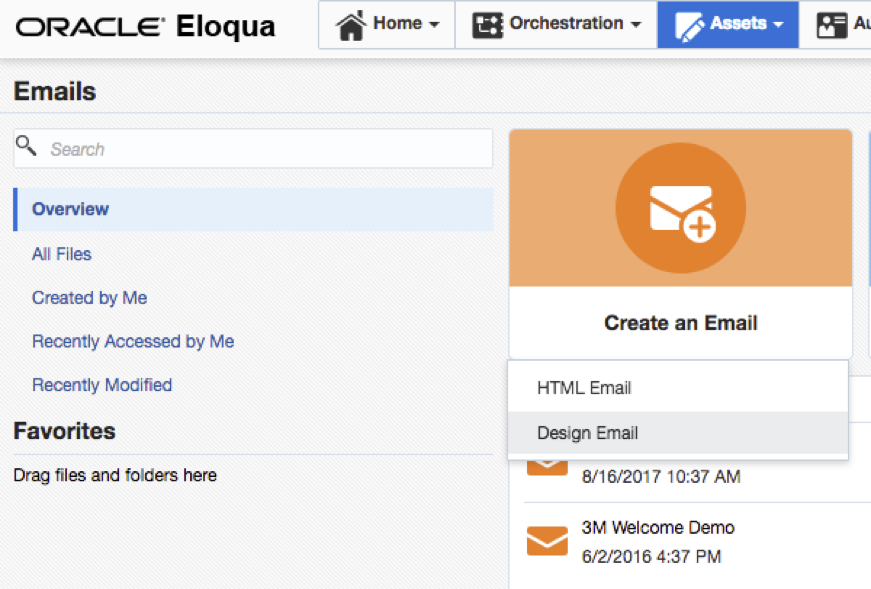
- Click on Assets > Emails
- Click on “Create an Email” then select “Design or HTML Email: from the dropdown.
In the next screen, you will see the Template Chooser. You have several options at this point.
- Select the “Blank Email” icon
- Select from the Template Gallery section where you find several out of the box templates
- Eloqua Best Practices Templates (Event Invitation & Newsletter templates)
- Eloqua Mobile (Mobile Friendly templates)
- Select templates that have been created by you or someone else in your Eloqua System
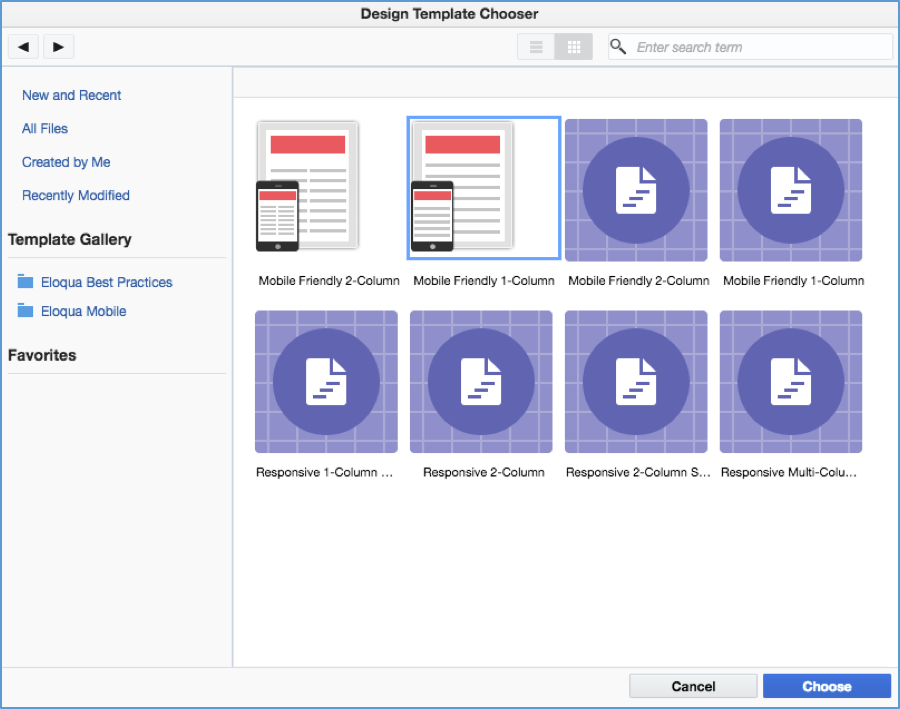
Once you find the template you want to use, select it and click on Choose, in the bottom right corner of your screen.
Once you have your Email edit screen, you can edit and create your email. The Template will have all images and text saved with the template. You will need to add the following items:
- Name of your Email
- Select an Email Group
Once you have your email the way you want it, save it and you are ready to use it.
Create a new Landing Page using an existing template:
To create a new Landing Page using a Template:
- Click on Assets > Landing Pages
- Click on “Create a Landing Page”
- Select a template
- Blank HTML Landing Page
- Blank Landing Page (drag and drop configuration)
- Other templates created by others in your Eloqua System
- Once you find the template you want to use, select it and click on Choose, in the bottom right corner of your screen.
Once you have your Landing Page edit screen, you can edit and create your page. The Template will have all images and text saved with the template. You will need to add the following items:
- Name your Landing Page
- Select the Microsite
- Add a Vanity URL
Once you have made any edits that you want, save it and you are ready to use your page.
Create a new Campaign using an existing template:
To create a new Campaign using a Template:
- Click on Orchestration > Campaigns
- Click on “Create a Multi-Step Campaign”
- Select a template
- Blank Campaign
- Eloqua Best Practices
- Other templates created by others in your Eloqua System
- Once you find the template you want to use, select it and click on Choose, in the bottom right corner of your screen.
Once you have your Campaign Canvas edit screen, you can edit and create your Campaign. The Template will have all steps saved with the template. You will need to add the following items:
- Name your Campaign
- Verify all Asset Steps (Emails, Segments, Shared Lists etc)
- Verify all decision steps (Compare Contact fields, Sent Email etc)
- Verify all Action Steps (Wait times, Add to Campaigns etc)
- Check Campaign field and CRM Campaign ID if used
Once you have made any edits that you need, save it and you are ready to use your Campaign.
Create a new Form using an existing template:
To create a new Form using a Template:
- Click on Assets > Forms
- Click on “Create a Form”
- Select a template
- Blank form
- Basic Form (contains Email address field and 1 processing step)
- Eloqua Best Practices
- Other templates created by others in your Eloqua System
- Once you find the template you want to use, select it and click on Choose, in the bottom right corner of your screen.
Once you have your Form edit screen, you can edit and create your Form. The Template will have all fields and processing steps saved with the template. You will need to add or verify the following items:
- Name your Form
- Provide a new unique HTML Name (optional, but recommended)
- Verify all processing steps
Once you have made any edits that you need, save it and you are ready to use your Form.
Create a new Segment using and existing template:
To create a new Segment using a Template:
- Click on Audience > Segment
- Click on “Create a Segment”
- Select a template
- Blank Segment
- Eloqua Best Practices
- Other templates created by others in your Eloqua System
- Once you find the template you want to use, select it and click on Choose, in the bottom right corner of your screen.
Once you have your Segment edit screen, you can edit and create your Segment. The Template will have all criteria saved with the template. You will need to add or verify the following items:
- Name your Segment
- Verify all criteria in the Segment
- Save the Segment to View the new Contacts
- Verify the Contacts in the Segment are correct (View Contacts in the upper right corner to view contacts in the Segment)
Once you have made any edits that you need, save it and you are ready to use your Segment.
Now you are a master of using existing templates, right? It’s a lot to digest, so I will give you some time to work with these before we dive into creating new templates. Stay tuned for part 2 of this blog series!
As always, if you have any questions, please comment below or contact us.
Share This
About the Author: Kim Amato