“Set-It-and-Forget-It”. It’s a catchy phrase often associated with marketing automation efforts. But as Oracle Eloqua users, we know we can’t forget about anything – not the automated nurture campaigns, not the system governance and data health, and certainly not the CRM integration. Our responsibilities include monitoring, troubleshooting and maintaining all the aspects of our demand generation efforts. Central to the success of everything is ensuring the right information is getting to the right people at the right time.
As you work toward ensuring data health and timeliness, there are some simple actions you can take to minimize interruptions to your data and keep the accuracy of your data intact.
One of the most basic steps you should be aware of is enabling CRM failure notifications.
Nobody’s Minding the Store
It’s not our finest moment when a prospect or customer is incorrectly identified as a segment member for an outbound communication that’s not relevant for them. It certainly can impact the personalized, one-to-one relationship we’re trying to build. The reason this happens comes down to the quality of our data. If our data isn’t accurate, then contacts can enter the wrong campaign or exit the right campaign. If an auto sync is failing, and nobody is monitoring it, your Eloqua data is aging.
To prevent this, be sure that error notifications on your inbound auto syncs are enabled. This is standard practice when setting up integration. Most of the time, clients take advantage of this simple, but critical check box. However, the issue I run into frequently is using a personal email address for the notification. I’ve seen auto syncs that have been failing for an extended period of time because the email address on the notifications is for a person no longer with the organization. Replace any personal email addresses with a distribution list. And be sure the people on that list know how to change the CRM user password and troubleshoot the errors. This simple change can help ensure that you’re aware of issues that might come up.
If a Lead Fails on Create – Does Anyone Hear It?
You’ve taken all the right steps to ensure speed-to-lead is maximized. Your Contact Us form submissions immediately enter the CRM Update program, which is running in Priority Mode. Right? Fantastic! But if a Create Lead call fails, are you notified? Does anyone hear it? Or is your error notification system akin to Amazon relying on the pony express for their package delivery? By any standards, not a best practice or a system that’s going to work for anyone.
While error notifications for inbound calls are often turned on, enabling the outbound failure notifications is something that’s often overlooked. If you’re not sure if failure notifications are enabled for outbound calls, navigate to Integration > Configuration > Manage Error Notifications, and check it out. At a minimum, include standard Create Leads, Update Leads and Update Contacts calls in your notifications. Don’t forget to select High Priority, which will send failed calls hourly.
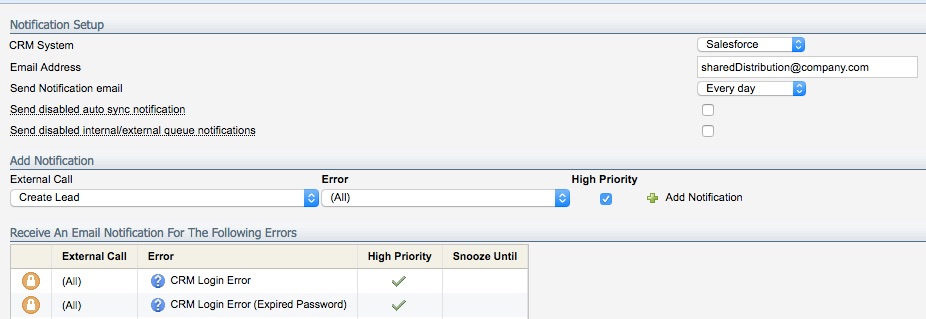
Once you review any errors, and fix the Eloqua records, you can manually rerun the failed calls. Unlike auto syncs, which automatically import new or modified records since the last time the sync successfully ran, outbound calls do not automatically rerun.
To rerun the corrected records, navigate to the Integration Status page, hover over Failed Updates and select View by External Call. Click on the bold number in the Number Failed column to display the list of failed calls. Select the individual calls to rerun, and then select Re-Run External Calls under the Actions menu.

Stop Repeating the Same Mistakes All Over Again
When an integration fails, it’s important to identify and resolve the issue quickly. I’m stating the obvious here — troubleshooting can be a big time suck! The error messages on the notifications you receive originate from the CRM system. They’re not usually intuitive, and can leave you with little inspiration on where to begin the investigation. For Salesforce errors, view the list in the Knowledge Base to get started. Even though it might take some sleuthing to get to the root of the integration failure, it will be worth it in the long run. Better to solve the issue right away than to have to manually fix records over and over…or worse, slowly dirty up your data until you’re at the point where nothing is accurate anymore.
As you resolve errors, keep a log of each one and the corrective action taken. Share your information with your team. Then determine if additional processes or programs are needed.
For example, an “invalid field” error will make you see red. Literally, because CRM fields that are deleted or renamed in the CRM display as red text in the Field Selection area of your auto sync. Checking the Field Selection area is not something you might initially think of when troubleshooting. But if you log it and share it, the next time around it will be a faster fix.
This scenario begs a bigger question: What are you missing in your change management process that allowed a CRM field change to get implemented without the Eloqua admin being notified? Maybe it was a one-time mistake. It could mean you need a change management process, or an update to an existing process if it’s more than a one-time occurrence.
Look for other areas where you can improve efficiencies. For example, are you spending time fixing the same errors over and over again on failed calls? Are calls predominately failing because of incorrect field value? Take the time to fix the issue at the front-end to save time in the long run, and not slow down your data getting to CRM.
Also, consider the source of where Eloqua contacts are originating. Do you need to update a form, train an Eloqua user on cleansing values, update documentation, or configure a contact washing?
Finally, one last recommendation – do you know if your Data Priority is in order? If not, now would be a good time to review it. If you’re not familiar with Data Priority (Integration > Inbound > Management > Data Priority Order), it determines what sources of data are able to overwrite the field values from another source. Usually your CRM is the gold standard, and CRM Contacts are of a higher priority than Leads. And your manual list uploads into Eloqua should be at the bottom.
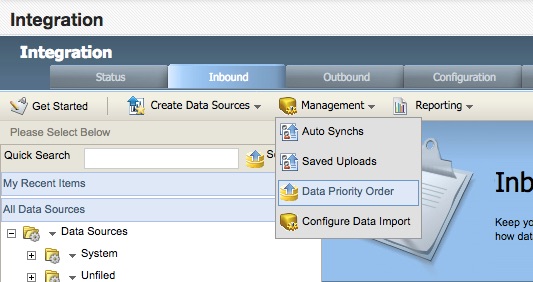
If you’re seeing issues around field values not updating from a list upload (no matter how many times the upload is repeated), it is most likely due to Data Priority. Ensure that the Data Priority order in your instance is correct based on your business requirements. If appropriate, document and communicate a process for data cleansing via list upload. (When and how can manual list upload data overwrite CRM data?) Take two minutes to check on your Data Priority settings to ensure everything is set the way you want it.
Set It and Check It.
Spending a few minutes setting up your notification errors and checking on your integration settings can give some peace-of-mind. Knowing that if a call fails, you will be notified, and can fix an issue right away is worth the 5 minutes it takes to set everything up. Just keep in mind, it’s still recommended to drop in periodically on your integration area to double check things. Maybe make a calendar note to check on it twice a year, making sure to update settings when you know changes are made. Lastly, check your reporting and be sure the number of records imported and exported are on par with what you expect. A few minutes of proactivity will pay massive dividends when it comes to ensuring the right data is going to the right person at the right time.
Ready to set up your integration spot check for your Eloqua instance but need a little extra support? Let us know! Or maybe you’ve already done the spot check and you have questions? Tell us about your experience in the comments below or fill out this form and someone will get back to you.
Share This
About the Author: Heidi Huffman