Welcome back, code aficionados! If you’re just joining us, it might be helpful to review previous posts, starting here. You can also select the “html” or “code” tags to view them all.
Okay, so where were we? Ah, yes. We’ve just added a lovely image to our email. Nice work! But, we need some nice looking copy, right? Duh. For today’s lesson, we’ll keep it simple with just a heading and some body copy. I’ll walk you through the basic setup in HTML, and then we’ll cover some specific CSS properties to help you customize the style.
At the end, it’ll look something like this:

Side note: Is your standard lorem ipsum missing something? Is that something bacon? Indulge, my friend: http://baconipsum.com/.
First thing’s first; let’s add some copy, starting with the heading. Headings are defined in HTML with specific tags that denote the size. The largest heading tag is an h1, which looks like this: <h1></h1>. As the numbers increase, the size of the heading decreases. The smallest heading is an h6: <h6></h6>. Typically, h1’s are reserved for major headlines or page titles. The smaller ones (h5’s and h6’s) are less common, but appropriate in certain cases, depending on what you’re building. In this case, let’s use an h2. Within the table cell (<td></td>) that contains our image, we’ll add an opening and closing h2 tag and put our heading copy inside, like this:
<td style="font-family: 'Helvetica Neue', Helvetica, Arial, sans-serif; font-size: 14px;
 line-height: 17px; padding-bottom: 20px; padding-left: 10px; padding-right: 20px;">
<h2>Bacon is the new bacon.</h2>
<img src="marketing.jpg" width="400" style="display: block; padding-top: 20px;"
alt="super sweet image, dude."/>
</td>
Next, we’ll add some body copy below it.
<td style="font-family: 'Helvetica Neue', Helvetica, Arial, sans-serif; font-size: 14px;
line-height: 17px; padding-bottom: 20px; padding-left: 10px; padding-right: 20px;">
<h2>Bacon is the new bacon.</h2>
Bacon ipsum dolor amet beef ribs sausage turducken, ground round strip steak kielbasa ball tip bresaola rump
shank short loin capicola pork loin. Leberkas shoulder venison prosciutto. Bresaola pork loin turkey,
leberkas short ribs spare ribs strip steak porchetta prosciutto pastrami shank ham hock.
<img src="marketing.jpg" width="400" style="display: block; padding-top: 20px;"
alt="super sweet image, dude."/>
</td>
Side note: For web development, we’d typically wrap this body copy in a paragraph tag (<p></p>), but for email, it’s not as important since it’s already enclosed within a table cell.
Okay, sweet. We have our copy in place. Let’s see what it looks like.

Not bad, but it needs some style. Let’s use CSS to adjust the font, sizing, spacing and color.
Font Type
If you don’t specify a font, most browsers and email clients default to the lovely Times New Roman. Nothing against Times, but we can do better. Because we’re working with an email, it’s best to stick with web-safe fonts, as they’re the most reliable across all platforms. However, if you’re interested in experimenting with custom fonts, Google Fonts is a good option.
Here are some resources to get you started:
Litmus: https://litmus.com/blog/typography-tips-for-email-designers
MailChimp: http://templates.mailchimp.com/design/typography/
In our table cell, we’ll add the “font-family” property to our style attribute and set the value to “Helvetica”, like this:
<td style="font-family: 'Helvetica'; padding-bottom: 20px; padding-left: 10px; padding-right: 20px;">A couple things to note:
- Since we’re applying this style to the containing table cell, all copy within that table cell will be affected, which means both our heading and body copy.
- Notice the quotes around “Helvetica.” When referencing a specific font name (as opposed to something generic like serif or sans-serif), use quotes.
But what if our browser or email client can’t render Helvetica? If we left things as is, the font would default back to Times New Roman. No good. To prevent that, we’ll implement what’s called a “font stack”. This is a comma-delimited list (in order of importance) that defines our primary and backup fonts. So, if Helvetica isn’t available, let’s roll back to Arial, and if Arial isn’t available, then we’ll default to a basic sans serif.
The Code:
<td style="font-family: 'Helvetica', 'Arial', sans-serif; padding-bottom: 20px;
padding-left: 10px; padding-right: 20px;">
The result:

There are hundreds of font stacks to choose from, but here are two basic sets to get you started:
- Sans-serif: Helvetica, Arial, Verdana, Trebuchet MS
- Serif: Georgia, Times New Roman, Courier
Font Size
Okay, now that we’ve set our font, let’s adjust the size of both our elements. Similar to the font type, if we don’t specify a font size, browsers and email clients will render them at default values. This isn’t necessarily wrong, but it’s better to be specific about styles so our layout remains consistent. Let’s change our heading size to 30px and our body copy to 14px.
To start, we’ll first apply a “font-size” property to our table cell and set it to 14px, like so:
<td style="font-family: 'Helvetica', 'Arial', sans-serif; font-size: 14px;
padding-bottom: 20px; padding-left: 10px; padding-right: 20px;">
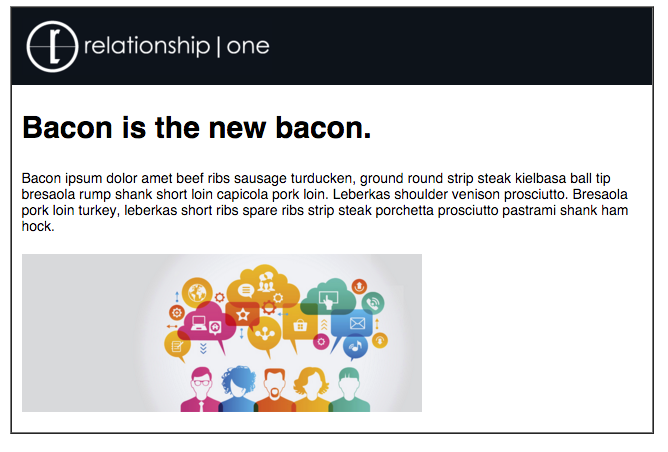
Our body copy is now 14px (high five!), but our heading is still the default 24px (boo that). To adjust our headline, we’ll apply CSS directly to the h2 tag, overriding the default value and our table cell, like this:
The code:
<td style="font-family: 'Helvetica Neue', Helvetica, Arial, sans-serif; font-size: 14px;
padding-bottom: 20px; padding-left: 10px; padding-right: 20px;">
<h2 style="font-size: 30px;">Bacon is the new bacon.</h2>
The result:
Spacing
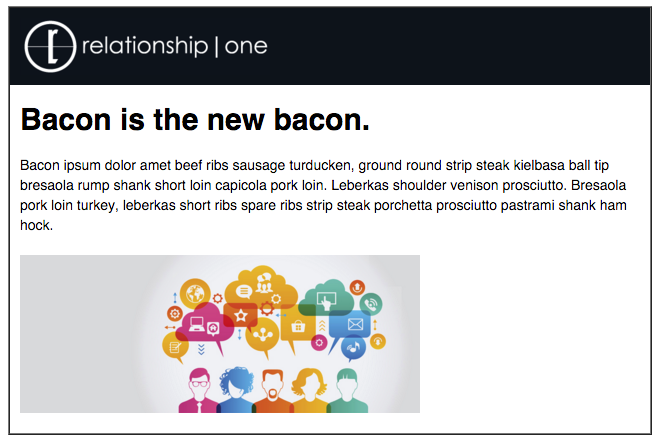
It’s looking good, but the body copy is a little cramped. In the realm of graphic design, the term “leading” is used to describe the space between lines of text. In the web world, this is called “line-height”. Let’s add the line-height property to the table cell to give our copy some breathing room. As a general guideline, the line-height should be around 120-150% of the font size. Since our font size is 14px, our line-height should be somewhere between 17px and 21px. Let’s go with 20px.
The code:
<td style="font-family: 'Helvetica', 'Arial', sans-serif; font-size: 14px; line-height: 20px;
padding-bottom: 20px; padding-left: 10px; padding-right: 20px;">
The result:
Color
Ah, much better. Okay, we have one more adjustment to make: color. In the final example, the first “Bacon” in our heading is pink. To do this, we have to isolate a single word within our headline. But how? Meet the span tag (<span></span>). A span tag is like a wrapper that allows us to target a specific piece of an html element without affecting the entire thing. We’ll wrap “Bacon” in a span tag and add CSS to it to change the color.
<td style="font-family: 'Helvetica Neue', Helvetica, Arial, sans-serif; font-size: 14px;
padding-bottom: 20px; padding-left: 10px; padding-right: 20px;">
<h2 style="font-size: 30px;"><span style="color: deeppink;">Bacon</span> is the new bacon.</h2>
In this case, the font-size property targets the entire heading, whereas the color property is localized to whatever is inside our span tag. And the result:
Dang. That is one delicious email.
There are tons of CSS properties you can use to customize your copy, but, hopefully, these examples have given you a good starting point. For more guidance, w3schools has a full list with some solid examples.
Have fun playing around with copy and feel free to ask questions or share comments. Until next time, happy coding!
Share This
About the Author: Relationship One